> For the complete documentation index, see [llms.txt](https://docs.iotex.io/llms.txt). Markdown versions of documentation pages are available by appending `.md` to page URLs; this page is available as [Markdown](https://docs.iotex.io/blockchain/ecosystem/powered-by-iotex-devices/pebble-tracker/migrating-to-pebble-v2.0/1.0-device-registration.md).
# 1.0 Device Registration
{% hint style="warning" %}
**Note:** This document applies to Pebble Trackers that run a software version `v1.0.x` and have not been registered on [machinefi.com](https://machinefi.com). If your Pebble Tracker is already registered please proceed with the [Broken mention](broken://pages/ZMdgey2E8eFqBKOBlRoI)
{% endhint %}
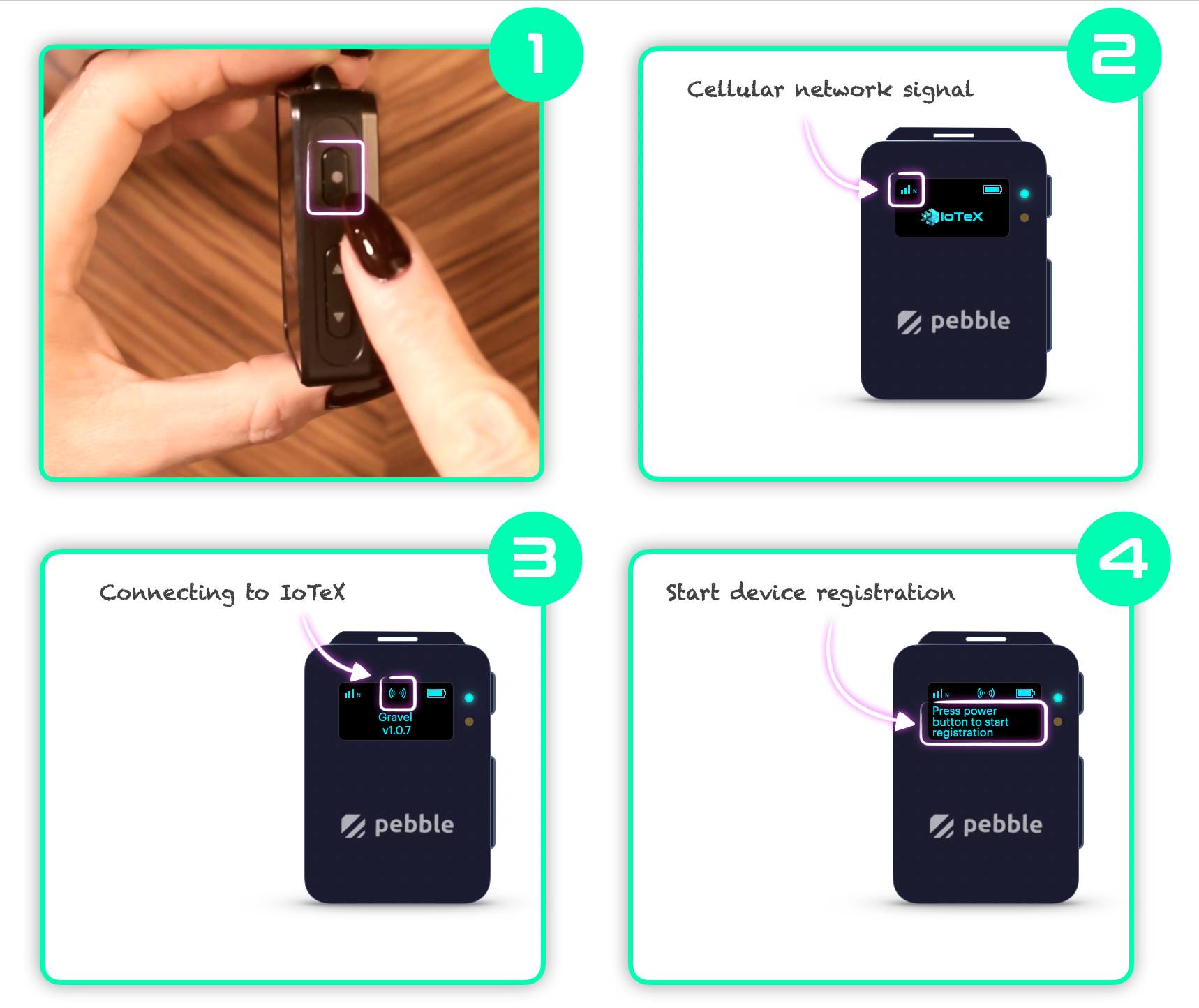
## Turn on your Pebble Tracker
Wait for the Pebble Tracker to establish a cellular connection and begin communicating with the network. You will then be prompted to initiate the registration process, which will link the device to your IoTeX wallet as its owner.
Press the **Power/Confirm** button once, to start the registration process on the Pebble side:
## Creating a MachineFi Account
To register a Pebble Tracker on the IoTeX MachineFi portal, you first need to create a blockchain account. This account will serve as the **owner account** for all associated devices. Follow the steps below to get started:
{% hint style="success" %}
**Prerequisites**:
* You have [Metamask](https://metamask.io/download/) installed in your browser or [ioPay mobile](https://iopay.me) on your smartphone.
* If using Metamask, ensure you [added the IoTeX Network](https://developers.iotex.io)
* You own some [native IOTX](https://docs.iotex.io/depin-infra-modules-dim/iotex-l1-depin-blockchain/wallets/buy-iotx-tokens) in your wallet account
{% endhint %}
{% hint style="warning" %}
Please make sure your wallet is connected to the IoTeX blockchain and you have a few **IOTX native** tokens in your wallet. You can get IOTX native tokens on the IoTeX network from [most exchanges worldwide](https://docs.iotex.io/depin-infra-modules-dim/iotex-l1-depin-blockchain/wallets/buy-iotx-tokens).
**Also, please notice that Coinbase only supports IOTX on the Ethereum blockchain (ERC20) which would not work.**
{% endhint %}
Open the MachineFi device portal at [portal.machinefi.com](https://portal.machinefi.com), and **connect** a blockchain wallet account that you want to use as your *Devices* *Owner Account,* the portal will automatically start the account registration process:
{% embed url="" %}
1. Assign a name to your MachineFi account
2. Confirm the account creation dialog
3. Sign the transaction in the wallet
## Depositing Credit
Once a MachineFi account is created, you should **deposit some IOTX credit**. This step is not strictly required at this moment: if you want, you can skip it and go ahead with registering your Pebble. You can deposit credit at any moment.
{% hint style="warning" %}
While you do not need any credit to monitor your Pebble data history on the MachineFi portal, please keep in mind that you need to deposit IOTX into your MachineFi account to allow your device to send data to IoTeX Dapps.
{% endhint %}
To deposit some credit:
1. Switch to the [**Account**](https://portal.machinefi.com/account) page
2. Click the **Deposit Credit** button
3. Input the amount of IOTX you want to deposit
4. Confirm the deposit dialog
5. Finally, confirm the transaction in the wallet
On the same **Account** page, you can also withdraw your MachineFi credit at any time, as well as check the list of all your account transactions.
## Registering your Pebble
You can now switch to the [**Devices**](https://portal.machinefi.com/device) tab of the portal, which lists all the devices you associated with your MachineFi account. For a newly created account, with no devices added yet, the page will look like the one below, just click the **Add Device** button:
select "**Pebble**" to register and add a new Pebble Tracker to your MachineFi account:
Follow the registration screens until you reach the "Confirm" step, where the owner address and device IMEI number are shown:
{% hint style="success" %}
Make sure your Pebble is powered on and [prompting for device registration](#power-on).
{% endhint %}
Go ahead and press the **Next** button, confirm the transaction in your wallet, and wait for your blockchain address to be displayed on the Pebble tracker screen:
Finally, we complete the registration on the device side by pressing the Power/Confirm button once more, and waiting for Pebble to complete the registration:
The "[**Devices**](https://portal.machinefi.com/device)" page will show the Pebble Tracker you just registered, marked as a "**Confirmed**" device:
## Method 3: On
---
# Agent Instructions
This documentation is published with GitBook. GitBook is the documentation platform designed so that both humans and AI agents can read, navigate, and reason over technical content effectively. Learn more at gitbook.com.
## Querying This Documentation
If you need additional information that is not directly available in this page, you can query the documentation by asking a question.
Perform an HTTP GET request on the following URL with the `ask` and `goal` query parameters:
```
GET https://docs.iotex.io/blockchain/ecosystem/powered-by-iotex-devices/pebble-tracker/migrating-to-pebble-v2.0/1.0-device-registration.md?ask=&goal=
```
`ask` is the immediate question: it should be specific, self-contained, and written in natural language.
`goal` is what the user is ultimately trying to achieve, the reason they need the answer. Sharing it helps GitBook give you a better, more relevant answer. A goal is most helpful when it describes the outcome the user wants rather than restating the question. For example, with `ask=how do I create an API token`, a goal like `automate deployments from our CI pipeline` lets GitBook tailor the answer to that use case.
The response will contain a direct answer to the question and relevant excerpts and sources from the documentation.
Use this mechanism when the answer is not explicitly present in the current page, you need clarification or additional context, or you want to retrieve related documentation sections.


.jpg)

.jpg)


